
Home tab
Your balance, your next leave, and a Request button. Nothing to search for.
Request time off, approve it, and see who is out. All in the workspace your team already opens every morning. Spock is a PTO tracker for Slack, built for clarity and trust.
Free 14-day trial. No credit card required.
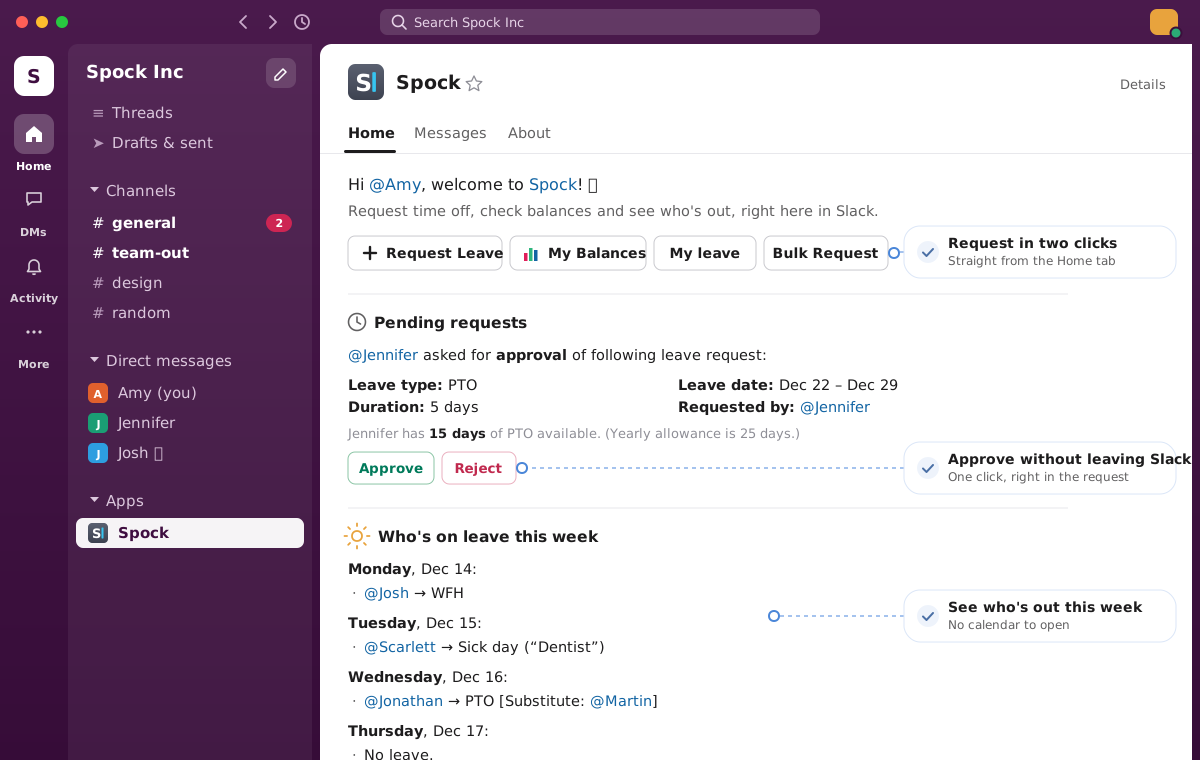
Spock lives in Slack as a Home tab and a few messages. Balances, requests, approvals, and the team calendar are one click from the conversation.
Your balance, your next leave, and a Request button. Nothing to search for.
Managers approve from the notification. Teams get a daily who-is-out post.
On leave? Spock sets the status for you and clears it when you are back.
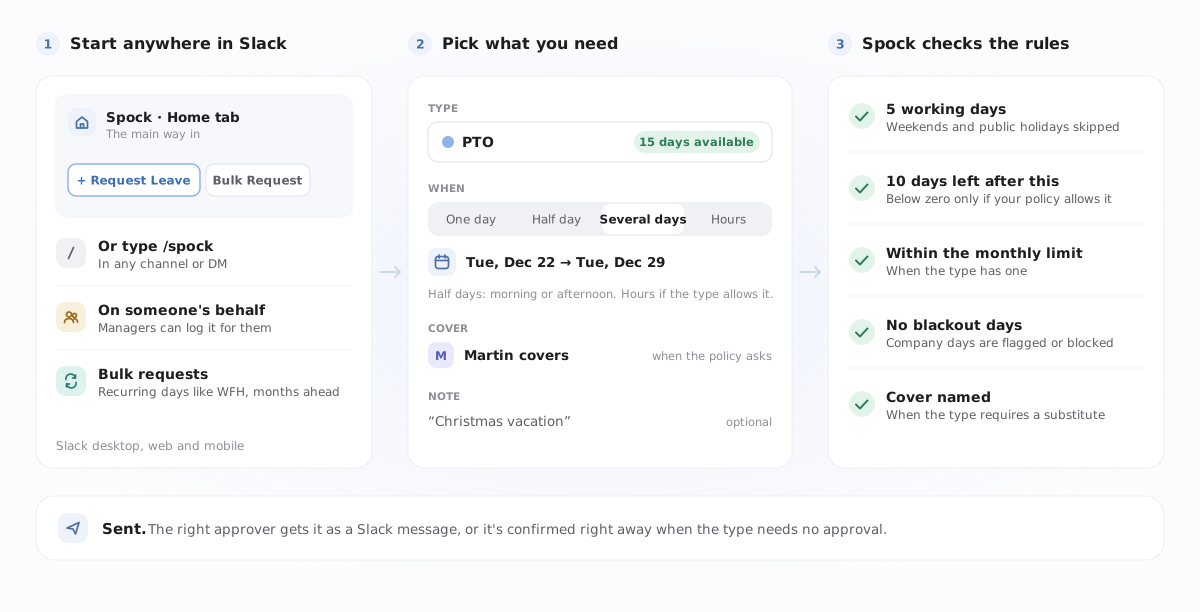
Open Spock in Slack, pick the type and the dates, and send. You see your balance while you choose, and Spock checks the rules for you, so the request is right the first time.
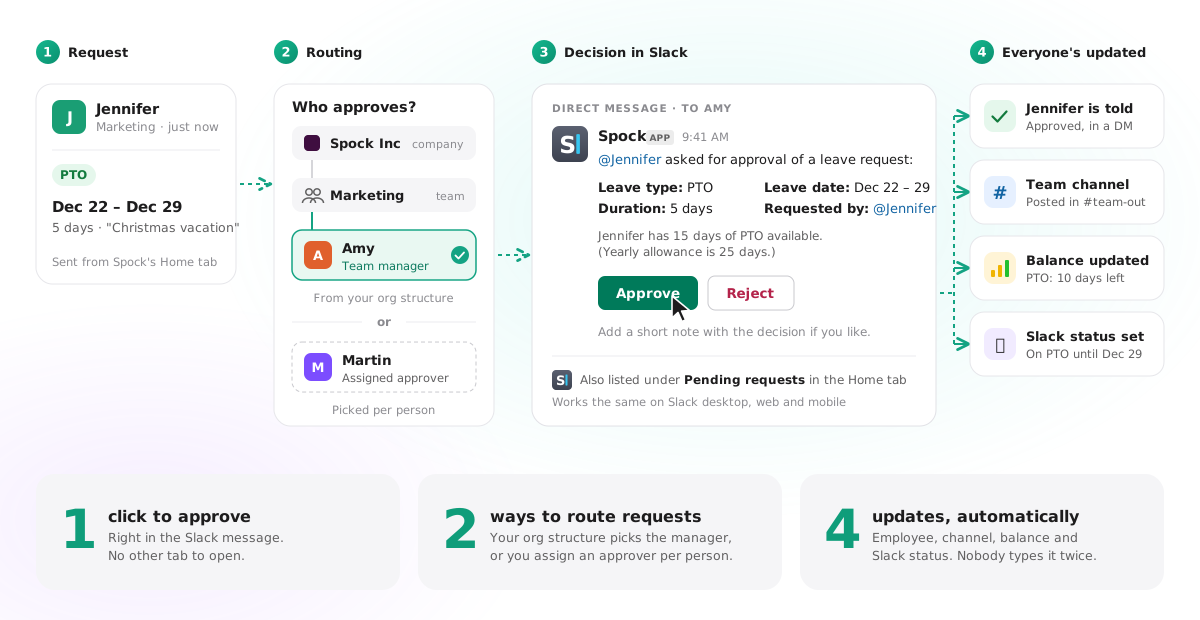
Spock finds the manager from your company structure and sends them the request. They approve or decline in place and can add a short note. Nobody opens a spreadsheet.
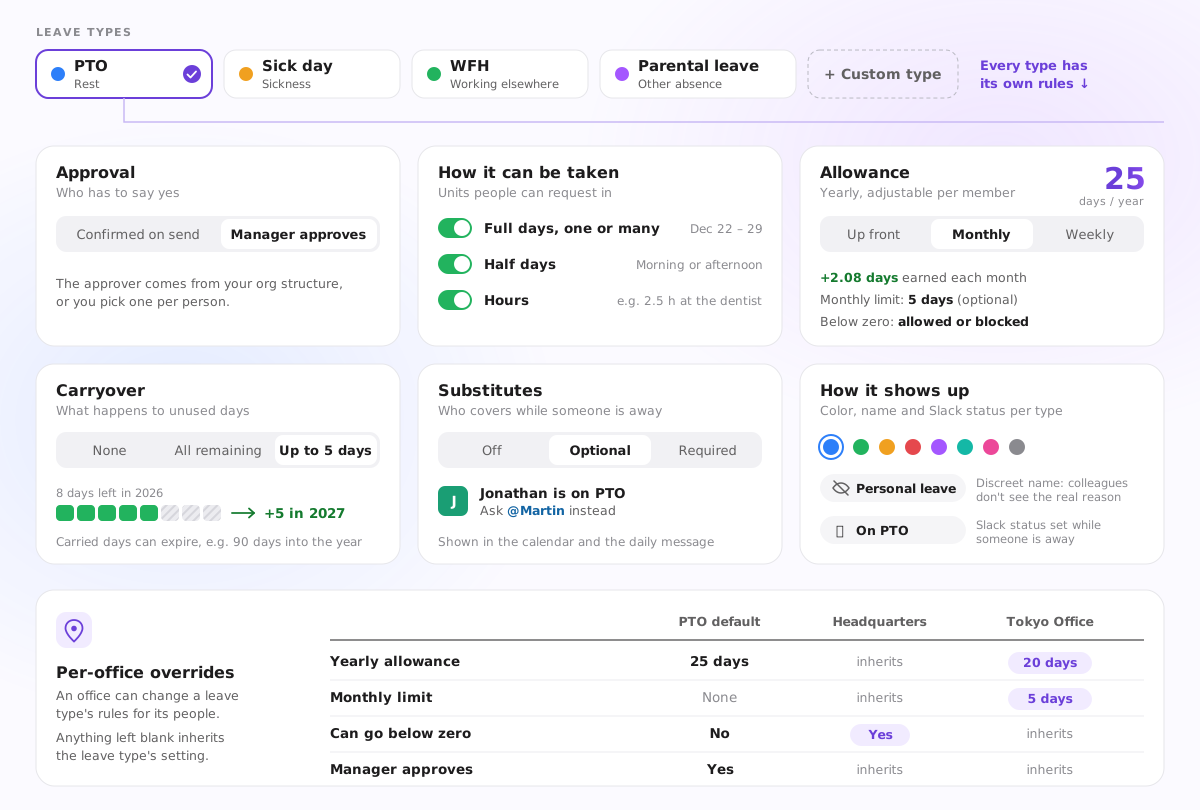
Vacation, sick leave, parental leave, remote days. Each type carries its own settings, so the policy on paper is the policy Spock enforces.
Decide whether a manager has to approve, or whether the request is confirmed on send.
Set how many days each person gets per year, and whether they may go over it.
Track leave in hours or half days when a full day is too coarse.
Show a neutral label for sensitive leave types. Colleagues see time off, not the reason.
Name who covers while someone is away. They get notified too.
Let unused days roll into next year, with a cap or without one.
Cap how many days of a type can be taken in one month.
Give each type its own color so the team calendar reads at a glance.
Define the status Spock sets automatically while someone is on that leave type.
Not every company grants a full year of leave on day one. Set an accrual rate once and Spock credits leave on schedule, by week, month, or year.
How much leave is added, and how often.
Hire date, fiscal year, or any date you choose.
Set a maximum so unused leave has a limit.
Different rates for tenure, role, or seniority.
Everyone sees upcoming credits and the history of what they earned.
No spreadsheets, no recalculations, no reminders to run.
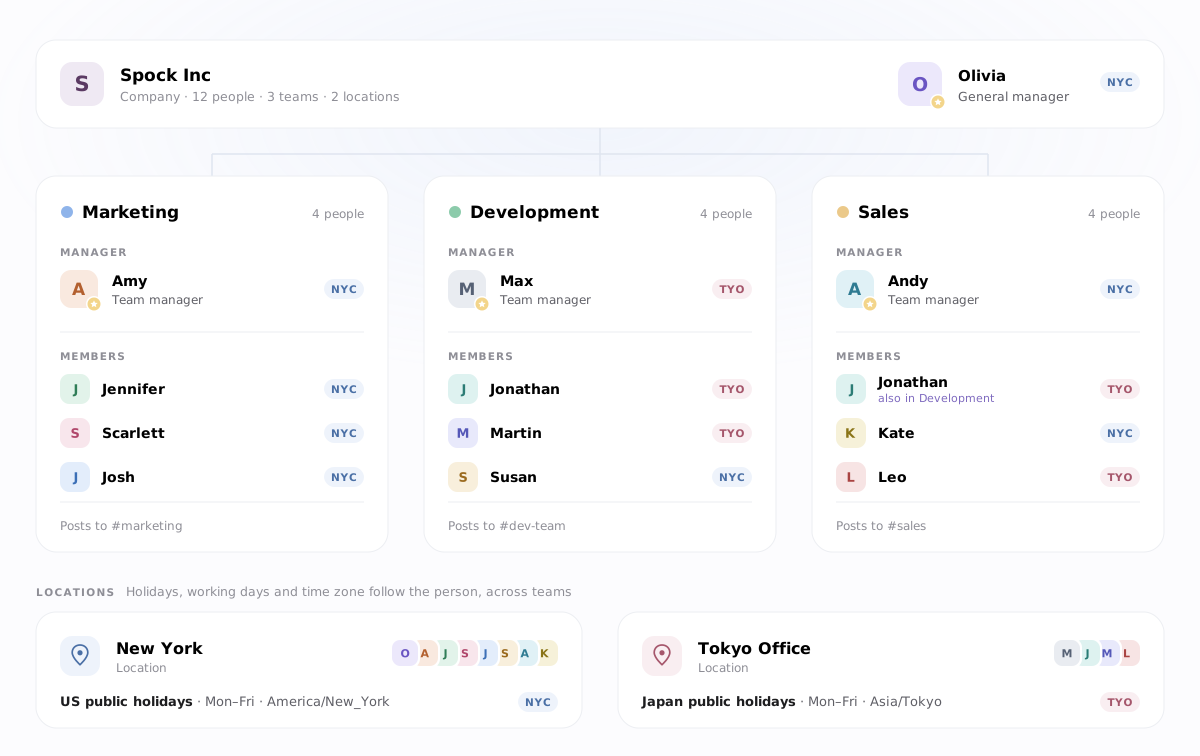
Departments, offices, projects. Each team has its managers, who approve requests and manage members. Members are notified when a colleague's leave is approved or changed.
Connect your time-off data to your AI and tools, and pull reports for payroll. Employees never have to leave Slack.
Pull users, requests and balances via the REST API. Get a webhook the moment a request is approved. Plug both into your AI agent. Professional plan.

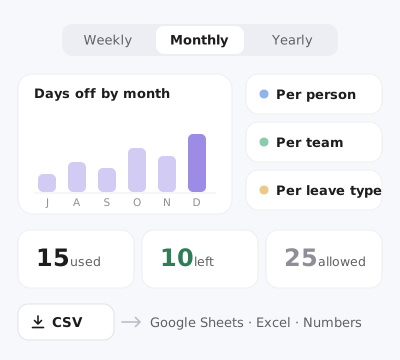
Monthly reports for payroll, yearly reports for management, per person and per team. Export to a spreadsheet in one click.
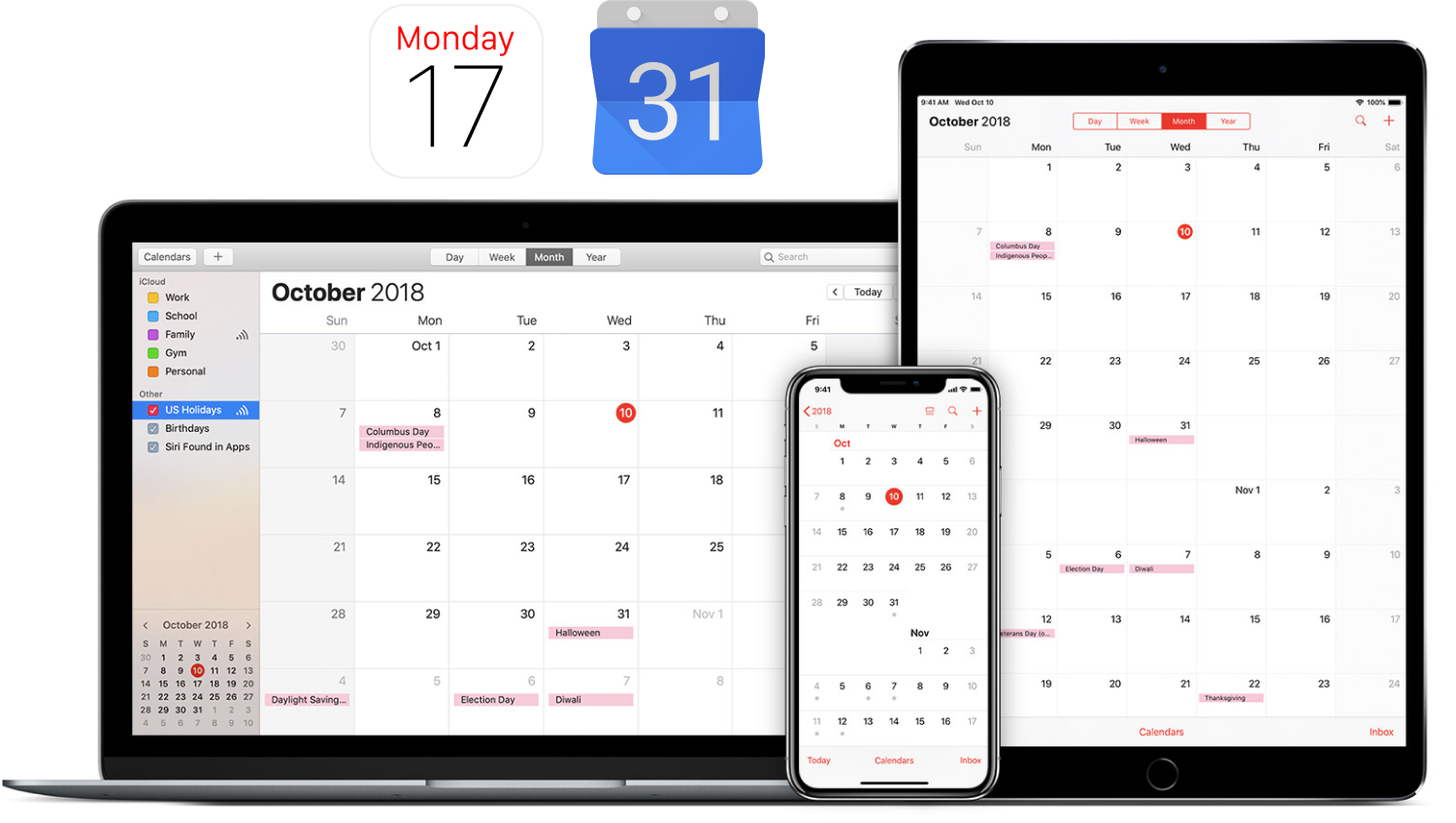
Connect Google Calendar, Outlook, or iCal once. Every approved absence shows up where you plan your week, and is removed if it is canceled.
It only takes a few minutes to set up leave tracking for your company.
Start your 14-day free trial.
No credit card required.